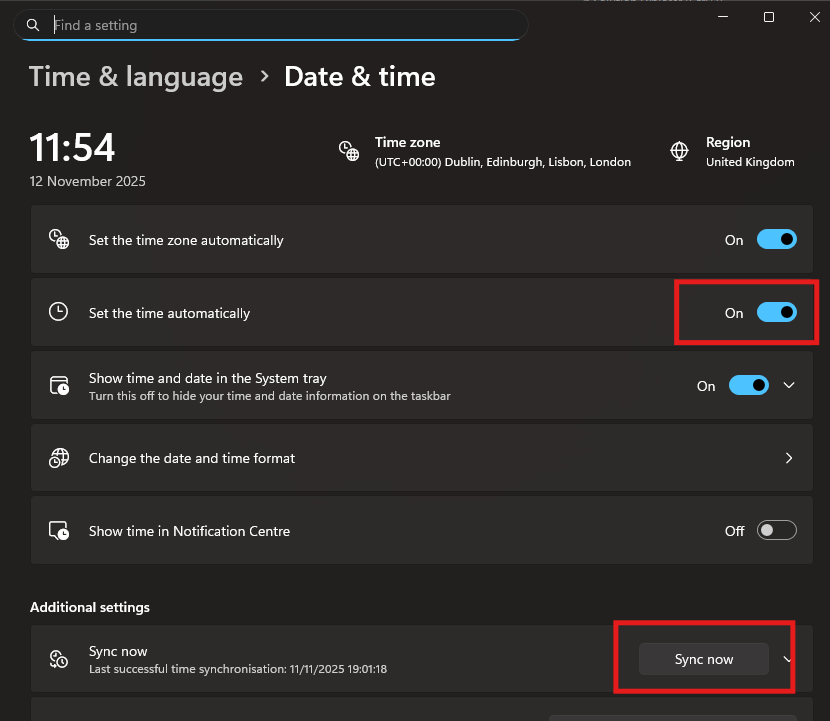
To safely authenticate with secure systems, including Husky, your computer time should be accurate. When it’s not correct you may see errors when logging into Husky.
If the time on your local PC is incorrect or differs from the server time follow the steps below to synchronise your Windows PC clock with an internet time server.
Step 1: Open Windows Date & Time Settings
Right-click the clock in the bottom-right corner of your Windows taskbar.
Select Adjust date and time.
The Windows Date & Time settings page will open.
Step 2: Check Automatic Time Settings
Ensure Set time automatically is switched On.
Ensure Set time zone automatically is enabled if appropriate for your location.
Check that the displayed time zone is correct.
Step 3: Synchronise with the Time Server
Scroll down to the Additional settings section.
Locate Synchronise your clock.
Click Sync now.
Wait for Windows to complete the synchronisation.
Note: If you do not have permission to access or change your Windows Date & Time settings, please contact your IT Support team for assistance. They may need to update your settings or synchronise your PC clock on your behalf.